
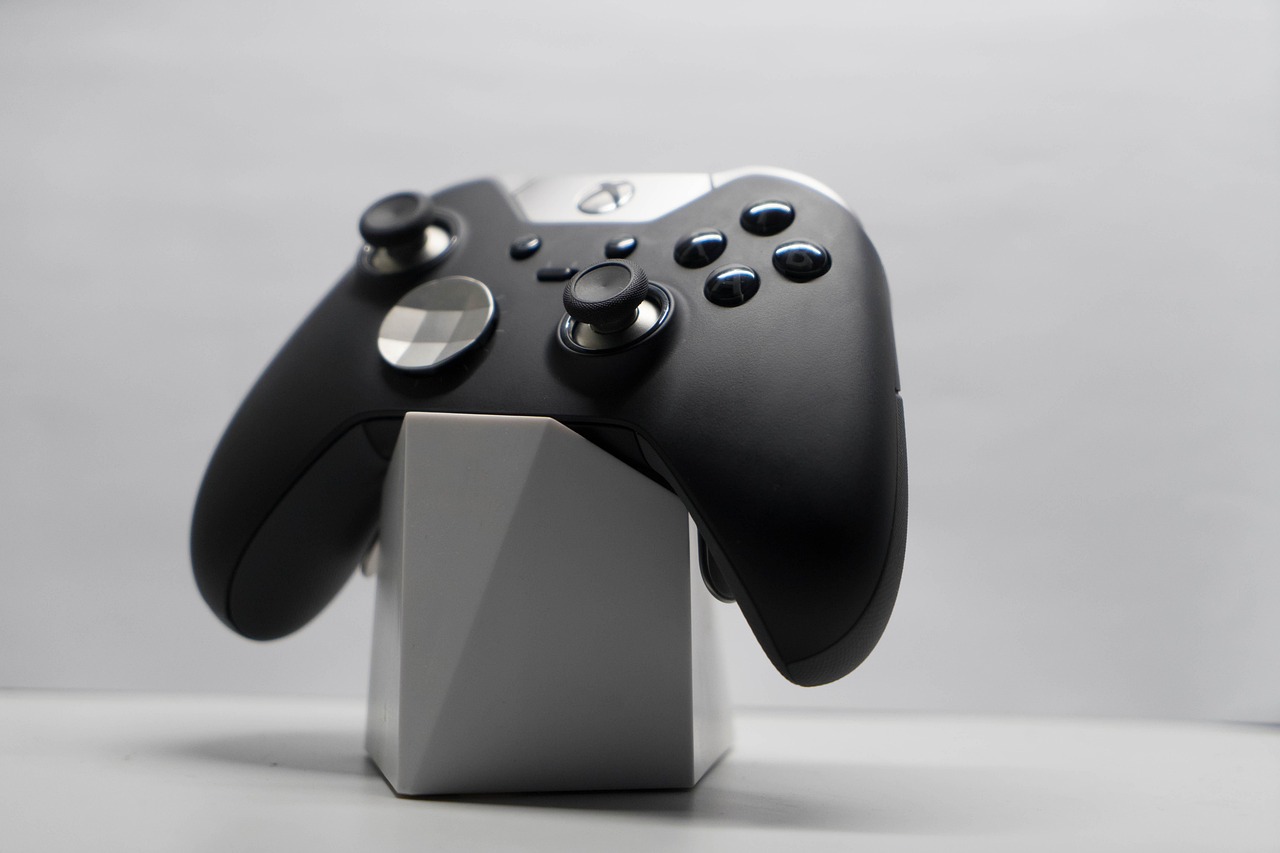
In the vast and ever-evolving landscape of modern gaming, convenience and connectivity are paramount. Enter the Xbox app, a powerful and indispensable tool that transcends the traditional console experience, bringing the expansive world of Xbox directly to your Windows PC, mobile devices, and even smart TVs. More than just a launcher, it’s a comprehensive hub designed to integrate your gaming life, from discovering new titles to connecting with friends and even streaming your favorite console games wherever you are. If you’re looking to elevate your gaming setup and unlock new possibilities, understanding the full potential of the Xbox app is your next quest.
At its core, the Xbox app is Microsoft’s answer to unifying the Xbox gaming ecosystem, making it accessible and robust for PC users. It’s designed to be the go-to destination for everything Xbox on your desktop, offering a seamless and intuitive interface that feels right at home on Windows. For both seasoned Xbox veterans and newcomers to the platform, the app serves as a vital bridge, extending the console experience and creating new avenues for play.
Why Every PC Gamer Needs the Xbox App
-
- Unified Game Library: Access all your owned Xbox digital games, PC Game Pass titles, and even games purchased from the Microsoft Store in one convenient location.
-
- Cross-Platform Harmony: Enjoy features that seamlessly connect your PC gaming experience with your Xbox console, friends, and achievements.
-
- Performance & Reliability: Built by Microsoft, the app offers robust performance, regular updates, and deep integration with the Windows operating system.
Getting Started: Download and Setup
Downloading and setting up the Xbox app is straightforward, ensuring you can dive into your games quickly.
-
- Open the Microsoft Store on your Windows PC.
-
- Search for “Xbox” and select the official “Xbox” app.
-
- Click “Install” and follow the on-screen prompts.
-
- Sign in with your Microsoft account (the same one linked to your Xbox profile) to instantly populate your game library and friend list.
Actionable Takeaway: Make the Xbox app your default launcher for Xbox-related content on PC to streamline your gaming access and management.
Unlocking Xbox Game Pass on PC
Perhaps the most compelling reason for PC gamers to embrace the Xbox app is its deep integration with Xbox Game Pass for PC (and Ultimate). This subscription service offers incredible value, providing access to a rotating library of hundreds of high-quality PC games, including new Xbox Game Studios titles on day one. The Xbox app acts as your central portal to this treasure trove of games.
Browsing, Discovering, and Installing Games
The app provides a user-friendly interface for exploring the vast Game Pass catalog.
-
- Intuitive Navigation: Browse games by genre, curated collections, new additions, and leaving soon titles.
-
- Detailed Game Pages: Each game entry features screenshots, trailers, descriptions, system requirements, and user reviews to help you make informed choices.
-
- Effortless Installation: With a single click, you can install any Game Pass title directly to your PC, with progress tracking and automatic updates.
Managing Your PC Game Library
Beyond discovery, the Xbox app offers robust tools for managing your installed games.
-
- Dedicated “Installed” Tab: Quickly see all games currently on your system, whether from Game Pass or purchased.
-
- Updates at a Glance: The app handles game updates automatically, ensuring you’re always playing the latest version, often with progress bars.
-
- Storage Management: Easily uninstall games to free up space, directly from within the app.
Practical Example: You just subscribed to Game Pass Ultimate. Open the Xbox app, navigate to the “Game Pass” section, discover “Starfield” in the “New Releases” category, click install, and the app manages the download and setup, getting you ready to explore the galaxy in minutes.
Actionable Takeaway: Regularly check the “Leaving Soon” section of Game Pass within the app to prioritize playing titles before they exit the catalog, ensuring you don’t miss out.
Beyond the Console: Remote Play and Cloud Gaming
The Xbox app truly shines by extending your gaming horizons far beyond the confines of your living room console or even your gaming PC. It empowers you to play your favorite Xbox games in more ways and places than ever before, thanks to powerful streaming technologies.
Xbox Remote Play: Your Console, Anywhere
Remote Play transforms your Windows PC or mobile device into a portable screen for your Xbox console. As long as your console is powered on (or in Instant-On mode) and connected to the internet, you can stream your games to the Xbox app.
-
- Play from Another Room: Continue your game in bed, in the kitchen, or anywhere else with a decent Wi-Fi signal, without moving your console.
-
- Full Console Experience: Access your entire Xbox library, dashboard, settings, and social features just as if you were sitting in front of your TV.
-
- Requires a Compatible Controller: Pair your Xbox Wireless Controller (or other compatible controllers) via Bluetooth to your PC for the best experience.
Practical Example: Your TV is occupied, but you want to finish a session of “Forza Horizon 5.” Launch the Xbox app on your laptop, connect to your Xbox Series X via Remote Play, and pick up exactly where you left off, enjoying the full graphical fidelity streamed over your local network.
Xbox Cloud Gaming: Play Without Installation
For Xbox Game Pass Ultimate subscribers, Cloud Gaming is a game-changer. It allows you to stream a curated selection of Game Pass titles directly to your PC (or mobile device, smart TV, web browser) without needing to download or install them. All the processing happens on Microsoft’s servers.
-
- Instant Access: Jump into games immediately – no downloads, no updates, just play.
-
- Low-Spec PC Friendly: Enjoy graphically intensive games even on older or less powerful PCs, as long as you have a stable internet connection.
-
- Massive Library: Access hundreds of cloud-enabled Game Pass titles, constantly updated.
Actionable Takeaway: Experiment with both Remote Play (for your owned console games) and Cloud Gaming (for Game Pass titles) to discover the most flexible way to enjoy your Xbox library based on your internet connection and device capabilities.
Social Connectivity and Community Features
Gaming is often a social experience, and the Xbox app is meticulously designed to keep you connected with your friends and the wider Xbox community. It mirrors many of the social features found on the Xbox console, ensuring your interactions are seamless whether you’re on PC or console.
Staying Connected with Friends
Your Xbox friends list is fully integrated, allowing for easy interaction.
-
- Friends List at Your Fingertips: See who’s online, what they’re playing, and their activity feed directly within the app.
-
- Instant Messaging: Send and receive messages with your Xbox friends, facilitating quick coordination or just catching up.
-
- Party Chat: Join or create voice parties with friends, whether they’re on PC, console, or mobile, for crystal-clear communication during multiplayer sessions.
Practical Example: You’re about to start a session of “Halo Infinite” with friends. Instead of typing messages on your console, open the Xbox app on your PC, invite them to a party chat, and communicate via your PC headset, leaving your console screen clear for the action.
Engaging with the Xbox Community
The app extends beyond your immediate friends, fostering a broader sense of community.
-
- Clubs and Looking for Group (LFG): Discover and join Clubs based on your interests, or use the LFG feature to find other players for specific games or activities.
-
- Activity Feed: Stay updated on your friends’ achievements, game clips, and screenshots.
-
- Achievements and Gamerscore: Track your progress, compare achievements with friends, and celebrate your gaming accomplishments directly from the app.
Actionable Takeaway: Utilize the Party Chat feature for superior voice communication while playing, as it often provides better clarity and control than in-game chat systems, and allows cross-platform interaction.
Managing Your Gaming Experience
The Xbox app isn’t just for playing games; it’s a powerful command center for managing every aspect of your Xbox gaming life on PC. From personalizing your profile to keeping your library optimized, the app provides comprehensive tools to ensure a smooth and enjoyable experience.
Personalizing Your Profile and Settings
Your Xbox identity and preferences are easily managed within the app.
-
- Profile Customization: Change your gamerpic, gamertag (if eligible), and bio.
-
- Privacy Settings: Manage who can see your activity, send you messages, or join your parties, ensuring a secure and comfortable online environment.
-
- Notifications: Customize alerts for friend requests, messages, game invites, and more, so you only receive what’s important to you.
Optimizing Your Game Installations
Efficient game management is key to a healthy gaming PC, and the Xbox app offers several options.
-
- Installation Drives: Choose which hard drive or SSD you want to install games on, making it easy to keep frequently played titles on faster drives.
-
- Game Updates: Set preferences for automatic updates, ensuring your games are always ready to play. You can also pause or resume downloads.
-
- Mod Support: For select Game Pass PC titles, the Xbox app now supports installing mods, opening up new avenues for customization and gameplay enhancements. (Check specific game details for compatibility.)
Practical Example: You just got a new NVMe SSD. Go into the Xbox app settings, change your default installation drive to the new SSD, and all future Game Pass downloads will automatically go there, improving load times for your new games.
Actionable Takeaway: Regularly check your Xbox app settings, especially under “Downloads” and “Gaming Features,” to tailor the experience to your preferences and ensure optimal performance for your games and PC.
Conclusion
The Xbox app is far more than just a supplementary tool; it’s an indispensable cornerstone of the modern Xbox gaming ecosystem, especially for PC users. It skillfully blends the best of console and PC gaming into a single, intuitive platform, offering unparalleled access to a vast library of games through Xbox Game Pass, flexible streaming options with Remote Play and Cloud Gaming, and robust social features that keep you connected to your friends and community.
By transforming your PC into a versatile gaming hub, the Xbox app empowers you to discover, play, and share games with incredible ease and flexibility. Whether you’re a dedicated Xbox console owner, a burgeoning PC gamer, or someone looking to explore the immense value of Game Pass, downloading and integrating the Xbox app into your setup is a definitive step towards a richer, more connected, and expansive gaming journey. Don’t just play games; command your entire Xbox universe from your desktop – the adventure awaits!