
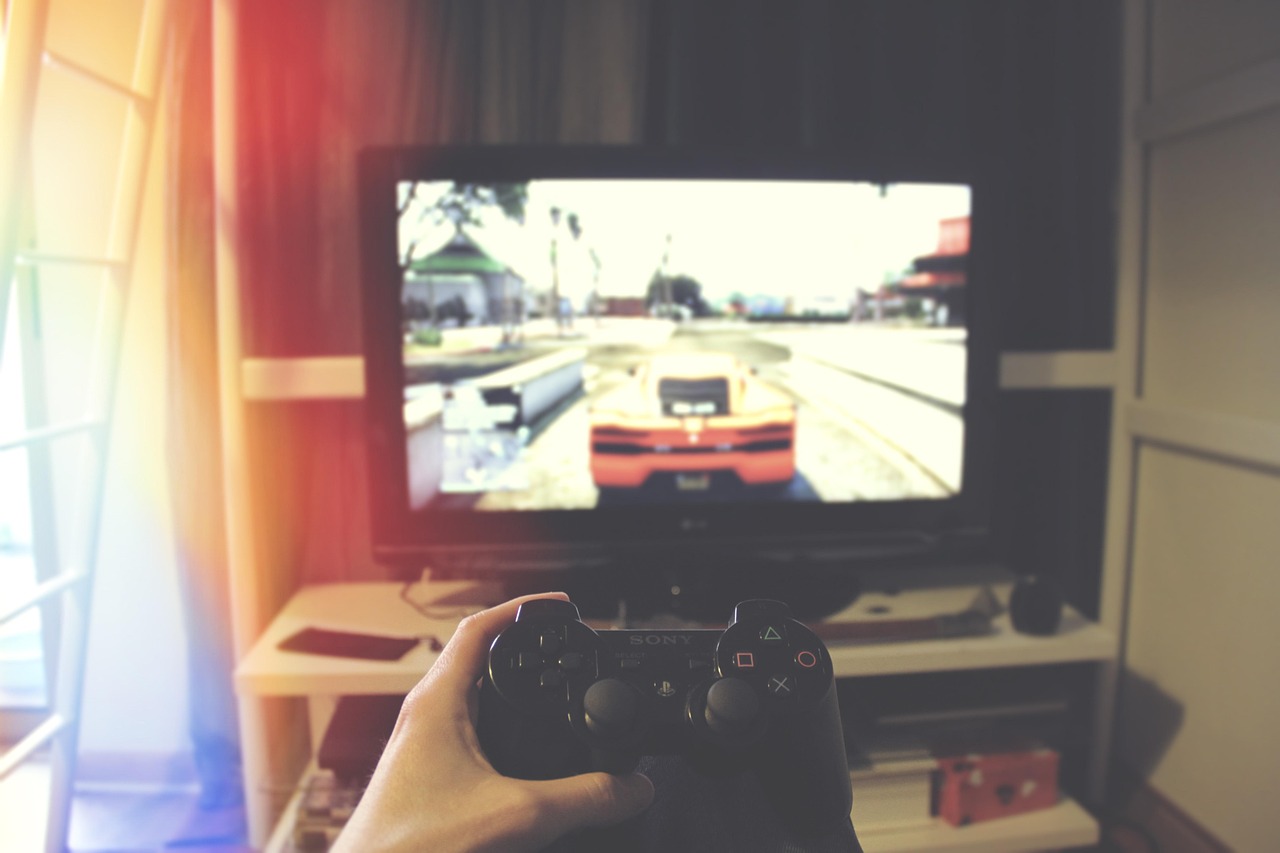
Embarking on a new gaming adventure with a PlayStation console is an exhilarating experience. Whether you’ve just unboxed the latest PS5 or are revisiting the beloved PS4, a smooth and efficient setup is your gateway to incredible virtual worlds. This comprehensive guide will walk you through every step, from connecting your hardware to optimizing your settings, ensuring you spend less time fiddling with wires and more time immersed in your favorite games. Get ready to unlock the full potential of your PlayStation and dive headfirst into unparalleled entertainment!
Unboxing Your PlayStation Console: The First Steps
The journey begins the moment you open the box. A methodical approach here ensures everything is accounted for and your console finds its perfect home.
What’s in the Box?
Upon opening your PlayStation packaging, you’ll typically find several key components. It’s a good practice to confirm everything is present and in good condition.
- PlayStation Console: Your gaming powerhouse, be it a sleek PS5 or a compact PS4.
- DualSense/DualShock Wireless Controller: Your primary interface for gaming, complete with haptic feedback and adaptive triggers on PS5.
- HDMI Cable: Essential for connecting your console to your TV or display, often a High-Speed HDMI cable to support 4K resolution and HDR.
- AC Power Cord: To provide power to your console.
- USB Cable: Used for charging and pairing your controller.
- Base/Stand (PS5): For positioning your PS5 horizontally or vertically.
- Manuals and Documentation: Quick start guides and safety information.
Practical Tip: Keep the original packaging and all its contents in a safe place. This is crucial for potential warranty returns or if you ever need to transport your console securely.
Initial Placement Considerations
Where you place your PlayStation can significantly impact its performance and longevity. Good ventilation is key to prevent overheating.
- Ventilation: Ensure ample space around all sides of the console, especially the vents. Avoid enclosed cabinets that restrict airflow.
- Stable Surface: Place the console on a flat, sturdy surface to prevent accidental falls.
- Proximity to TV: Position it close enough to your TV so the included HDMI and power cables can reach comfortably without being strained.
- Wi-Fi Signal: If you plan to use Wi-Fi, consider its proximity to your router for optimal signal strength.
Actionable Takeaway: Prioritize an open, well-ventilated spot for your PlayStation. Overheating can degrade performance and shorten your console’s lifespan.
Connecting Your PlayStation to Your TV and Power
Now that you’ve unboxed and found the perfect spot, it’s time to physically connect your console.
HDMI Connection: Visuals to Your Screen
The HDMI cable is responsible for transmitting high-definition video and audio to your display.
- Locate the HDMI OUT port on the back of your PlayStation console.
- Connect one end of the HDMI cable to this port.
- Connect the other end of the HDMI cable to an available HDMI IN port on your TV or monitor. If your TV has multiple HDMI ports, note which one you used (e.g., HDMI 1, HDMI 2) as you’ll need to select this input later.
Practical Tip: For the best visual experience, especially with a PS5, use the HDMI cable provided by Sony. If your TV supports 4K and HDR, ensure you connect to a compatible HDMI port, sometimes labeled “HDMI 2.0” or “HDMI 2.1” for optimal performance.
Power Connection: Firing Up Your Console
No power, no play! This step is straightforward but crucial.
- Plug the AC power cord into the AC IN port on the back of your PlayStation console.
- Plug the other end of the power cord into a wall outlet or surge protector.
Warning: Always use the power cord supplied with your console or a genuine replacement. Avoid generic cords that may not meet the console’s power requirements.
Controller Pairing: Ready for Action
Your wireless controller needs to be paired with the console before you can navigate the system menus.
- Connect your controller to the console using the supplied USB cable.
- Once connected, press the PlayStation button (PS button) in the center of the controller. The controller will power on, and the light bar will flash before staying lit, indicating it’s paired.
- You can then disconnect the USB cable, as the controller will now communicate wirelessly (unless it needs charging).
Actionable Takeaway: Double-check all cable connections are snug and correctly inserted before powering on. A loose connection can lead to no signal or intermittent power.
Initial Software Setup and Internet Connection
With your hardware connected, it’s time to configure the software and get online.
Language and Time Zone Settings
When you first power on your PlayStation, you’ll be guided through a series of initial setup screens.
- Select your preferred language for the system interface.
- Set your time zone and verify the date and time. This is important for online services and game data.
Internet Connection: Gateway to Online Gaming and Updates
Connecting to the internet is vital for system updates, digital game downloads, and online multiplayer.
- Wi-Fi Connection:
- Select ‘Set Up Internet Connection’ and choose ‘Use Wi-Fi’.
- Scan for available networks and select your home network.
- Enter your Wi-Fi password.
- Ethernet (Wired) Connection:
- Connect an Ethernet cable from your router or modem to the LAN port on the back of your PlayStation.
- Select ‘Set Up Internet Connection’ and choose ‘Use a LAN Cable’. The connection should automatically be detected and configured.
Practical Tip: A wired Ethernet connection generally provides a more stable and faster internet experience, reducing latency and download times compared to Wi-Fi. This is especially beneficial for competitive online gaming.
System Software Update: Staying Current
Your PlayStation will likely prompt you to download and install the latest system software update. Do not skip this step!
- Follow the on-screen instructions to download and install the update. This can take some time, depending on your internet speed.
- Your console may restart multiple times during the update process.
Why it’s important: System software updates often include critical security patches, new features, performance enhancements, and compatibility fixes for new games. Running outdated software can lead to bugs or prevent you from accessing certain features.
PlayStation Network (PSN) Account Creation/Login
Your PSN account is your digital identity on PlayStation, granting access to online multiplayer, the PlayStation Store, friends lists, and more.
- If you already have a PSN account, simply Sign In using your existing email address and password.
- If you’re new to PlayStation, select ‘Create an Account’ and follow the prompts to set up your profile, including your date of birth, region, and online ID.
Actionable Takeaway: Setting up a PSN account is essential for modern PlayStation gaming. Ensure you remember your login details and consider setting up two-factor authentication for added security.
Optimizing Your PlayStation Experience
Once the basic setup is complete, fine-tuning your console’s settings can significantly enhance your gaming and entertainment.
Display and Audio Settings: Visuals and Sound
Dive into the Settings menu (often represented by a gear icon) to customize your display and audio output.
- Screen and Video Settings (PS5) / Sound and Screen (PS4):
- Resolution: Ensure it’s set to match your TV’s native resolution (e.g., 3840 x 2160 for 4K).
- HDR: If your TV supports High Dynamic Range, enable it for richer colors and contrast. Run the HDR calibration tool if available.
- RGB Range: Typically set to ‘Automatic’ or ‘Full’ if your TV supports it for deeper blacks.
- Display Area: Adjust to ensure the entire PlayStation interface fits on your screen without being cut off.
- Audio Output Settings:
- Primary Output Port: Usually ‘HDMI Out’ for TV speakers or soundbars.
- Audio Format (Priority): Consider ‘Linear PCM’ for uncompressed audio, or ‘Bitstream (Dolby/DTS)’ if your receiver or soundbar can decode it.
Practical Tip: Many modern TVs have a ‘Game Mode’ that reduces input lag. Check your TV settings to enable this for the HDMI input your PlayStation is connected to.
Controller Customization: Tailor Your Input
Personalize your controller to match your playstyle and preferences.
- Button Assignment: Remap buttons to your liking, which can be particularly useful for accessibility or specific game types.
- Vibration Intensity: Adjust or turn off vibration feedback.
- Controller Speaker Volume: Control the volume of audio coming from your DualSense/DualShock controller.
- Light Bar Brightness (PS4) / Indicator Lights (PS5): Adjust for personal preference or to save battery.
Storage Management: Keeping Space for New Adventures
Games are getting bigger, and managing your storage is essential.
- Internal Storage: Monitor your available space via the ‘Storage’ section in settings.
- External Storage: Consider adding an external USB HDD (for PS4 and PS5 backwards compatible games) or an internal M.2 SSD (for PS5 games) to expand your game library.
- For PS5, an M.2 NVMe SSD (PCIe Gen4x4) is required for playing PS5 games directly. Follow Sony’s guidelines for compatible drives.
- For PS4, a USB 3.0 external hard drive can store and run games.
Actionable Takeaway: Regularly check your storage. Deleting games you’ve finished or moving them to external storage frees up valuable space for new titles and updates. For PS5 owners, investing in a compatible M.2 SSD is highly recommended given the large file sizes of next-gen games.
Beyond Basic Setup: PS Plus, Games, and Accessories
With your PlayStation fully operational and optimized, it’s time to explore the vast world of gaming and additional services.
PlayStation Plus Benefits: Elevate Your Gaming
PlayStation Plus is a subscription service that significantly enhances your PlayStation experience.
- Online Multiplayer: Essential for playing most games online with friends and other players.
- Monthly Games: Access to a selection of free games each month that you can keep as long as your subscription is active.
- Exclusive Discounts: Members-only discounts on games, add-ons, and pre-orders on the PlayStation Store.
- Cloud Storage: Back up your game saves to the cloud, ensuring your progress is never lost, even if your console fails.
- Game Catalog (Extra/Premium tiers): Access to hundreds of PS4 and PS5 games.
Practical Example: To redeem your monthly PS Plus games, navigate to the PlayStation Plus section on your console’s home screen or the PlayStation Store and add them to your library. Even if you don’t plan to play them immediately, claiming them ensures they’re available for you later.
Installing Your First Game: Disc vs. Digital
Getting your first game ready to play is quick and easy.
- Disc Games: Insert the game disc into the console’s disc drive. The console will automatically begin installing the game data. You may need an internet connection for initial patches and updates.
- Digital Games: Purchase or download games directly from the PlayStation Store. Navigate to the game’s page, select ‘Download’, and it will begin installing to your console’s storage. You can monitor download progress in the ‘Downloads/Uploads’ section.
Essential Accessories: Enhancing Your Setup
A few key accessories can greatly improve your gaming comfort and convenience.
- Gaming Headset: Crucial for clear in-game audio and communicating with teammates in multiplayer. Look for options with good sound quality and a clear microphone.
- Controller Charging Station: A convenient way to keep your controllers charged and organized, eliminating the need to constantly plug them into the console.
- Extra Controllers: Perfect for local multiplayer sessions with friends and family.
- External Hard Drive (as mentioned before): A necessity for expanding your game library without constantly deleting and re-downloading titles.
Actionable Takeaway: Consider a PlayStation Plus subscription to unlock the full online capabilities and a vast library of games. Invest in a quality headset for immersive audio and effective communication.
Conclusion
Setting up your PlayStation console is the initial quest on your grand gaming adventure. By carefully following these steps – from mindful unboxing and precise connections to software configuration and personalized optimizations – you’ve laid the groundwork for countless hours of immersive entertainment. You’re now equipped with a powerful gaming system, perfectly tailored to your preferences, and ready to explore new worlds, conquer challenging foes, and connect with a global community of players.
So, power up your console, pick up that controller, and embark on your next digital journey. The world of PlayStation awaits!