
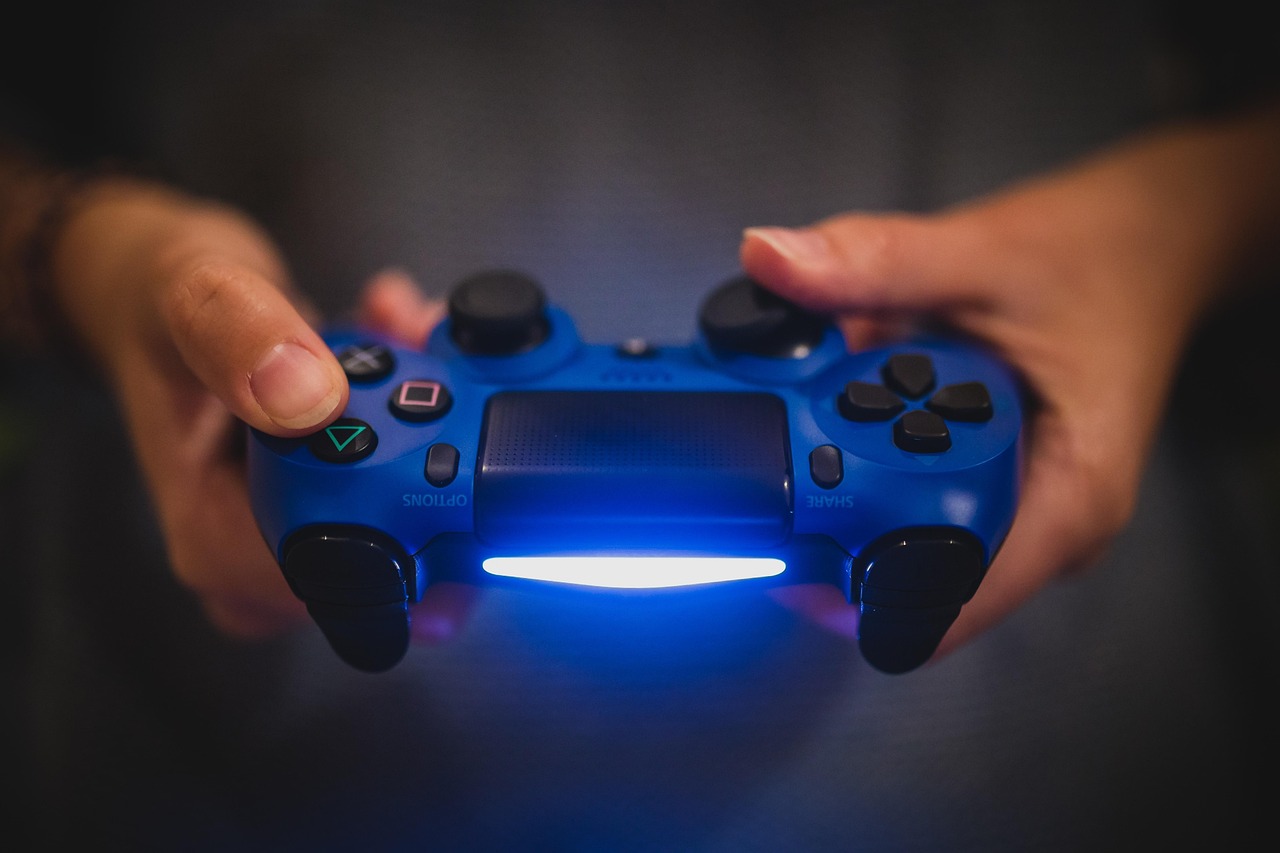
In the dynamic world of video games, few components are as critical to the immersive experience as the controller. For PlayStation enthusiasts, the evolution of their iconic controllers has been a journey of innovation, meticulously crafted to connect players more deeply with their virtual worlds. From the rumble of the original DualShock to the groundbreaking sensory feedback of the DualSense, PlayStation controllers have consistently pushed the boundaries, transforming how we interact with our favorite games. Join us as we explore the history, features, and lasting impact of these indispensable gaming peripherals.
The Legacy of Innovation: From DualShock to DualSense
The journey of PlayStation controllers is a testament to Sony’s commitment to enhancing the gaming experience. Each iteration has built upon its predecessor, introducing new technologies and refined ergonomics that have become benchmarks in the industry.
The Iconic DualShock Series
The DualShock line revolutionized console gaming with its introduction of tactile feedback. It was a game-changer, literally, providing a new dimension of immersion.
- DualShock 1-3: Pioneering Rumble and Analog Precision
Introduced in 1997, the original DualShock controller brought force feedback to the masses, letting players feel the impact of in-game events. Subsequent versions refined the design, improved analog stick precision, and added wireless capabilities, setting the standard for controller design for years.
- DualShock 4: The PS4’s Versatile Companion
The PlayStation 4’s DualShock 4 introduced a host of new features that paved the way for future innovations. It wasn’t just a controller; it was an extension of the console itself.
- Touchpad: A multi-touch clickable surface opening new gameplay possibilities.
- Light Bar: Providing visual cues for player identification, in-game status, and PlayStation Camera tracking.
- Share Button: Streamlining the process of sharing screenshots and video clips with friends.
- Built-in Speaker & Headphone Jack: Enhancing immersion with audio cues directly from the controller and personal audio options.
The Revolutionary DualSense Controller
With the launch of the PlayStation 5, Sony once again redefined the controller experience with the DualSense. This controller isn’t just an upgrade; it’s a paradigm shift in sensory immersion, designed to make you feel every nuance of the game world.
- Next-Gen Features for PS5 Gaming: The DualSense is the cornerstone of the PS5’s immersive capabilities, leveraging advanced haptics and adaptive triggers to deliver unprecedented tactile feedback. It’s built to truly make you feel the game.
- Astro’s Playroom: The DualSense Showcase: This pre-installed PS5 title brilliantly demonstrates every feature of the DualSense, from feeling sand shift under your feet to the subtle clicks of springs and gears.
Unpacking the DualSense: Features That Redefine Immersion
The DualSense controller is a marvel of engineering, packed with innovative features that work in concert to create a deeper, more visceral connection between player and game. Let’s delve into what makes it so special.
Haptic Feedback
Beyond traditional rumble, haptic feedback provides nuanced, realistic sensations that mimic in-game environments and actions.
- How it Works: Instead of simple vibrations, haptic feedback uses precise actuators to create a wide range of sensations, from subtle ripples to intense impacts. This allows developers to simulate textures, environmental effects, and distinct movements.
- Practical Examples:
- In Marvel’s Spider-Man: Miles Morales, you can feel the distinct thwip of the web-shooters and the jolt of Miles’s Venom Blasts.
- In Returnal, the feeling of raindrops can be distinguished from the pitter-patter of footsteps on different surfaces.
- Every explosion or collision in Deathloop resonates with a unique intensity, making combat more visceral.
- Actionable Takeaway: Pay attention to the subtle cues the controller provides; they often convey crucial information about your surroundings or character’s state.
Adaptive Triggers
The L2 and R2 buttons on the DualSense are equipped with adaptive triggers, allowing developers to program varying levels of resistance and tension.
- Resistance and Tension: These triggers can dynamically adjust their resistance based on in-game actions, simulating the weight of a trigger pull, the tension of a bowstring, or the effort of accelerating a vehicle.
- Practical Examples:
- Firing different weapons in Call of Duty: Vanguard provides distinct trigger feels, mimicking the recoil and resistance of each firearm.
- Drawing a bow in Horizon Forbidden West lets you feel the increasing tension as you pull back the string, enhancing precision and immersion.
- Driving various vehicles in Gran Turismo 7 gives a unique feel to the accelerator and brake pedals, conveying engine power and braking force.
- Actionable Takeaway: Experiment with different weapons or vehicles in games that support adaptive triggers to fully appreciate the tactile differences and how they can influence your playstyle.
Built-in Microphone & Speaker
The DualSense integrates both a microphone and a speaker, offering convenient communication options without needing a separate headset.
- Seamless Communication: Ideal for quick chats with teammates or interacting with in-game elements that use audio input.
- Immersive Audio Cues: Some games use the controller’s speaker for subtle audio effects, like audio logs or specific character voices, adding another layer to the experience.
Ergonomics and Design
The DualSense boasts a refined aesthetic and improved feel over its predecessors.
- Comfort for Extended Play: Its slightly larger, more rounded design fits comfortably in a wider range of hand sizes, reducing fatigue during long gaming sessions.
- Sleek, Modern Aesthetic: The two-tone design and subtle textures give it a futuristic look that perfectly complements the PS5 console.
Beyond the Basics: Enhancing Your PlayStation Gaming Experience
While the core features of PlayStation controllers offer a fantastic experience out of the box, understanding customization options and maintenance tips can further elevate your gameplay and extend your controller’s lifespan.
Customization and Personalization
Tailor your controller to your playstyle for optimal performance and comfort.
- Button Remapping: Most modern PlayStation consoles allow you to remap buttons through accessibility settings. This is crucial for players who prefer a different layout or need to accommodate specific physical needs.
- Tip: If a game’s default control scheme feels awkward, check your console’s settings (PS4: Settings > Accessibility > Button Assignments; PS5: Settings > Accessories > Controllers > Custom Button Assignments) before giving up on a title.
- Sensitivity Adjustments: Fine-tune analog stick sensitivity for greater precision in shooters or racing games. Some games also offer dead zone adjustments.
- Controller Skins & Accessories: Protect your controller and personalize its look with silicone skins, custom faceplates, and thumbstick grips, which can also improve grip and reduce wear.
Battery Life and Charging Solutions
Managing your controller’s power is essential for uninterrupted gaming.
- Tips for Extending Battery Life:
- Lower the brightness of the light bar (DualShock 4 & DualSense).
- Adjust vibration intensity or turn off haptic feedback/adaptive triggers for specific games if battery life is paramount (though this diminishes the unique PS5 experience).
- Set the controller to turn off after a period of inactivity.
- Charging Stations: Investing in a dedicated charging station for your DualShock 4 or DualSense controllers offers convenience, ensuring your controllers are always ready to go without occupying precious USB ports on your console.
Connectivity and Compatibility
PlayStation controllers offer versatile connectivity options.
- Wireless Bluetooth Connection: The primary method for connecting to your PlayStation console. Ensures freedom of movement and a clutter-free setup.
- Wired Play: Connect your controller via a USB cable for a zero-latency connection, which can be preferred by competitive players, or simply to charge while playing.
- PC Compatibility: Both DualShock 4 and DualSense controllers can be connected to PCs via Bluetooth or USB.
- Steam offers native support for both, allowing for easy configuration.
- For non-Steam games, third-party tools like DS4Windows (for DualShock 4) can help map controller inputs for broader compatibility.
Troubleshooting and Maintenance: Keeping Your Controller in Top Shape
Even the most advanced controllers can encounter issues. Knowing how to troubleshoot common problems and properly maintain your device can significantly prolong its life and ensure consistent performance.
Common Issues and Quick Fixes
Don’t let minor glitches interrupt your gaming session.
- Stick Drift: When the analog sticks register input even when untouched.
- Fixes: Try resetting the controller, cleaning around the base of the sticks with compressed air, or gently rotating the sticks several times. If persistent, a repair or replacement might be necessary.
- Connectivity Problems: Controller not pairing or frequently disconnecting.
- Fixes: Ensure the controller is fully charged. Try resetting the controller (small button on the back). Re-pair it with the console (turn off console, connect controller via USB, turn on console, press PS button). Ensure no other Bluetooth devices are causing interference.
- Charging Issues: Controller not charging or not holding a charge.
- Fixes: Try a different USB cable and a different charging port (on the console or a wall adapter). Clean the charging port on the controller. If the battery life is consistently poor, the internal battery may need replacement.
Cleaning and Care
Preventative maintenance goes a long way in preserving your controller.
- Regular Cleaning: Use a soft, dry cloth to wipe down the controller after use. For grime in crevices, a cotton swab lightly dampened with isopropyl alcohol can be effective.
- Preventative Measures:
- Avoid eating or drinking directly over your controller.
- Store your controller in a clean, dust-free environment.
- Avoid dropping the controller, as internal components can be sensitive.
- Recommended Tools: Microfiber cloths, cotton swabs, compressed air (for dust and debris), and isopropyl alcohol (for stubborn grime).
Firmware Updates
Keep your controller’s software up to date for optimal performance and new features.
- Importance of Updates: Firmware updates often include performance improvements, bug fixes, and sometimes new features or enhanced compatibility. Your PlayStation console will usually prompt you when a controller update is available.
- How to Update: Connect your controller to your console via USB and follow the on-screen prompts when an update is detected.
Conclusion
From the foundational rumble of the DualShock to the unparalleled sensory immersion of the DualSense, PlayStation controllers have consistently been at the forefront of gaming innovation. They are more than just input devices; they are extensions of our will within virtual worlds, designed to make every jump, shot, and interaction feel more real, more impactful. Understanding their features, customizing them to your liking, and maintaining them properly ensures that your journey through countless gaming universes remains as seamless and thrilling as possible. As technology continues to evolve, we can only anticipate what exciting new ways PlayStation will find to connect us even deeper to the games we love.